
Getting started
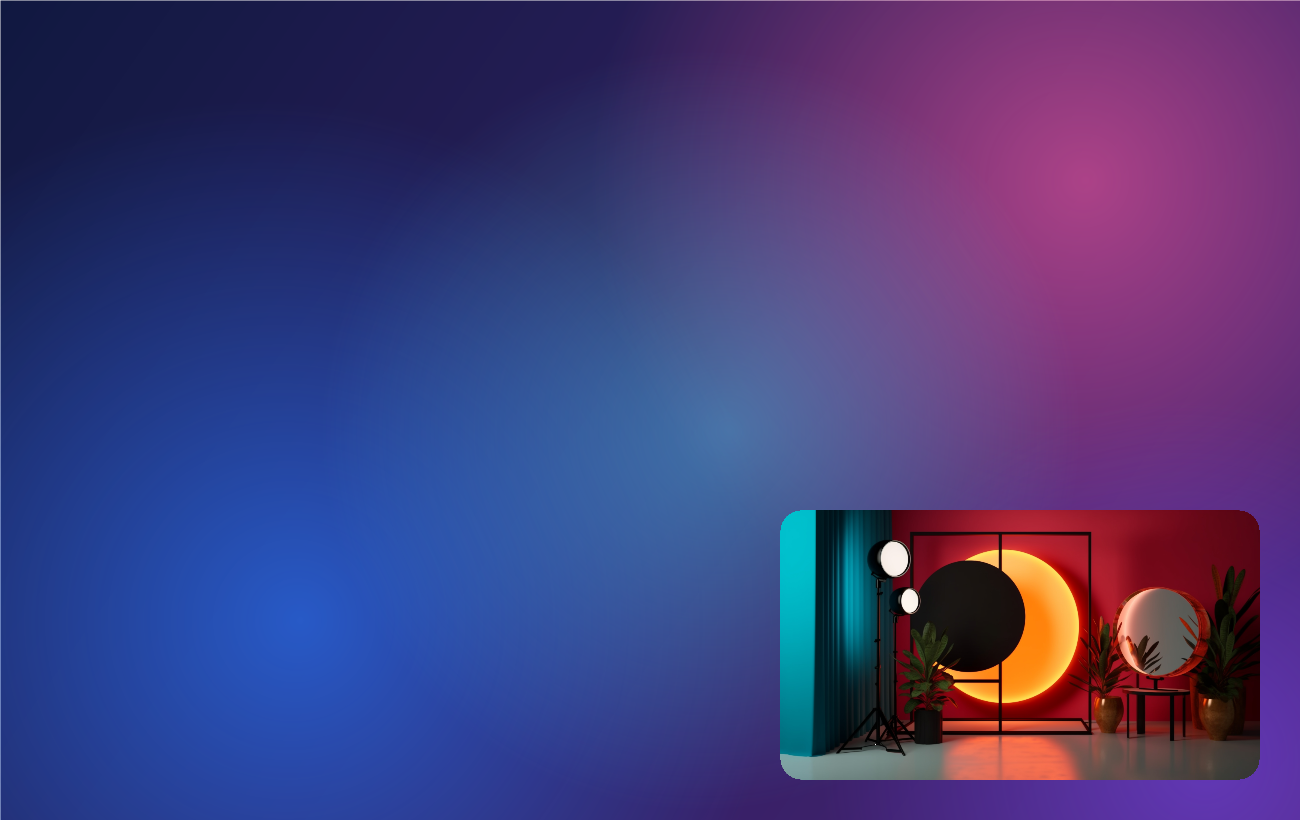
Preview Cam shows your webcam in a small floating window that stays above your other applications. It is meant as a self-view: you can see yourself while you record a tutorial, present slides or stream.
First launch
After installing, start Preview Cam from the Start menu.
- The overlay opens at 320 × 180 in the bottom-right corner of your main screen and stays on top of other windows.
- The first available camera is used. Pick another one in Settings.
- A short hint explains the basics; click it to dismiss.
- An icon appears in the system tray (the area next to the clock). The overlay has no taskbar button.
The basics
| Action | How |
|---|---|
| Move | Drag anywhere on the picture |
| Resize | Drag an edge or corner; for a circle, drag the rim |
| Show the controls | Move the mouse over the overlay |
| Hide / show the overlay | × in the controls, click the tray icon, or Ctrl + Alt + V |
| Click-through on / off | Ctrl + Alt + C, or the tray menu |
| Bigger / smaller | Ctrl + Alt + = and Ctrl + Alt + - |
| Back to the bottom-right corner | Ctrl + Alt + B |
| Open settings | ⚙ in the controls, the tray menu, or Ctrl + Alt + S |
| Quit | Tray menu → Exit |
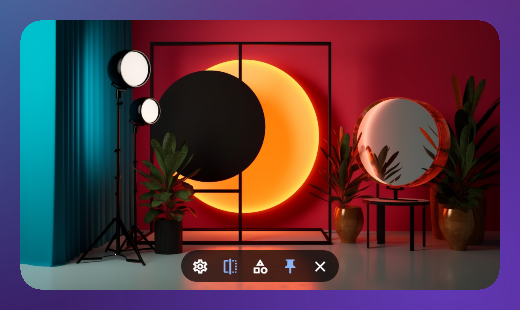
The controls that appear on hover are, from left to right: settings, mirror, next shape, always on top, and hide to tray.
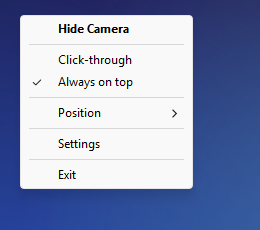
Right-click the tray icon for the menu:
Click-through
With click-through on, mouse clicks go through the overlay to whatever is underneath, so the overlay can sit on top of the application you are working in without getting in the way.
Because the overlay then cannot be clicked at all, turn it off again with Ctrl + Alt + C or from the tray menu. The setting is remembered when you restart.
Shapes and transparency
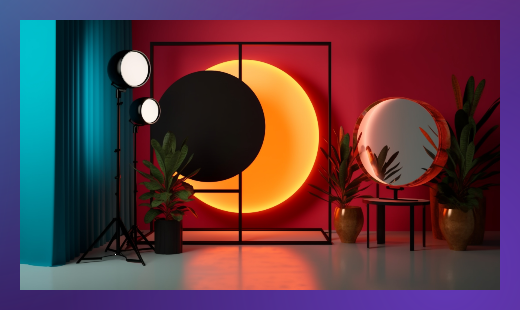
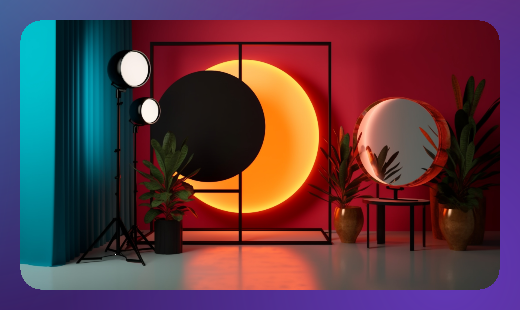
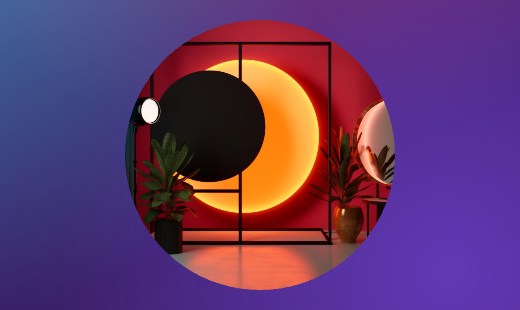
Choose between rectangle, rounded rectangle, circle, 16:9 and 4:3. The area outside the shape is truly transparent — you see, and can click, what is behind it.
| Rectangle | Rounded | Circle |
|---|---|---|
 |  |  |
If your camera removes the background (for example NVIDIA Broadcast with Virtual background → Remove), select that camera and the overlay shows only you, with the desktop visible around you.
Where things are kept
- The overlay hides to the tray instead of closing. Use Exit in the tray menu to quit.
- While the overlay is hidden, the camera is released so other applications can use it.
- Position, size, monitor and all settings are remembered.
Next: Using it with OBS.