
Settings and hotkeys
Open the settings window with the ⚙ control on the overlay, from the tray menu, or with Ctrl + Alt + S. Changes apply immediately and are saved automatically.
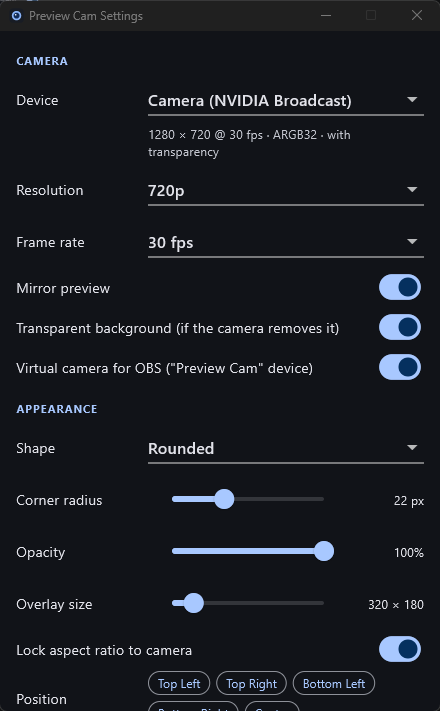
Camera
| Setting | Meaning |
|---|---|
| Device | The camera to show. Automatic uses the first available one. |
| Resolution | The mode closest to your choice is requested; the actual mode is shown below the device. |
| Frame rate | Requested frame rate. Some cameras offer only one. |
| Mirror preview | Flip the picture horizontally, like a mirror. Affects only Preview Cam. |
| Transparent background | Show through the parts of the picture a background-removing camera marks as transparent. |
| Virtual camera for OBS | Offer the finished picture to other applications as the "Preview Cam" camera. See Using it with OBS. |
Lower the resolution to 720p or less to reduce CPU load while recording; it is plenty for a small overlay.
Appearance
| Setting | Meaning |
|---|---|
| Shape | Rectangle, rounded, circle, 16:9 rounded, 4:3 rounded. |
| Corner radius | For the rounded shapes. |
| Opacity | Transparency of the whole overlay. |
| Overlay size | Size on screen. |
| Lock aspect ratio to camera | Keep the camera's proportions while resizing the free-form shapes. |
| Position | Move to a corner or the centre of the current screen, clear of the taskbar. |
Behavior
| Setting | Meaning |
|---|---|
| Language | English, O‘zbekcha, Русский. |
| Always on top | Keep the overlay above other windows. |
| Click-through | Let mouse clicks pass through the overlay. |
| Hide from taskbar | No taskbar button; the tray icon is the way in. |
| Allow window capture | Keep the overlay selectable in OBS's Window Capture list while it is hidden from the taskbar. Off also removes it from Alt+Tab. |
| Start with Windows | Launch when you sign in. |
| Remember position | Reopen where it was, on the same monitor. |
| Hover controls | Show the control strip when the mouse is over the overlay. |
Global hotkeys
These work no matter which application has focus.
| Action | Default |
|---|---|
| Show / hide overlay | Ctrl + Alt + V |
| Toggle click-through | Ctrl + Alt + C |
| Increase size | Ctrl + Alt + = |
| Decrease size | Ctrl + Alt + - |
| Move to bottom-right | Ctrl + Alt + B |
| Open settings | Ctrl + Alt + S |
To change one, click its button and press the new combination; Esc cancels. The × next to it removes the shortcut. A warning icon means another application already uses that combination.
Multiple monitors
Drag the overlay to any monitor. Its size adapts to that monitor's scaling, and it reopens there next time. If the monitor is no longer connected, the overlay moves to the bottom-right of an available one.